

Linux Installation
The QuFabric client (agent) allows a peer to join a pre-existing QuFabric deployment. If a QuFabric deployment is not yet available, there are both managed and self-hosted options available.
Linux Install Script
curl -fsSL https://pkgs.qufabric.io/install.sh | sh
Ubuntu/Debian (APT)
- Add the repository:
sudo apt-get update
sudo apt-get install ca-certificates curl gnupg -y
curl -sSL https://pkgs.qufabric.io/debian/public.key | sudo gpg --dearmor --output /usr/share/keyrings/qufabric-archive-keyring.gpg
echo 'deb [signed-by=/usr/share/keyrings/qufabric-archive-keyring.gpg] https://pkgs.qufabric.io/debian stable main' | sudo tee /etc/apt/sources.list.d/qufabric.list
- Update APT's cache
sudo apt-get update
- Install the package
 # for CLI only
 sudo apt-get install qufabric
 # for GUI package
 sudo apt-get install qufabric-ui
RHEL/Amazon Linux 2 (RPM)
- Add the repository:
sudo tee /etc/yum.repos.d/qufabric.repo <<EOF
[qufabric]
name=qufabric
baseurl=https://pkgs.qufabric.io/yum/
enabled=1
gpgcheck=1
gpgkey=https://pkgs.qufabric.io/yum/repodata/repomd.xml.key
repo_gpgcheck=1
EOF
- Install the package
 # for CLI only
 sudo yum install qufabric
 # for GUI package
 sudo yum install libappindicator-gtk3 libappindicator qufabric-ui
Fedora/Amazon Linux 2023 (DNF)
- Create the repository file:
sudo tee /etc/yum.repos.d/qufabric.repo <<EOF
[qufabric]
name=qufabric
baseurl=https://pkgs.qufabric.io/yum/
enabled=1
gpgcheck=1
gpgkey=https://pkgs.qufabric.io/yum/repodata/repomd.xml.key
repo_gpgcheck=1
EOF
- Import the file
#Fedora 40 or earlier/Amazon Linux 2023** (DNF 4)
 sudo dnf config-manager --add-repo /etc/yum.repos.d/qufabric.repo
#Fedora 41 or later (DNF 5)
 sudo dnf config-manager addrepo --from-repofile=/etc/yum.repos.d/qufabric.repo
- Install the package
 # for CLI only
 sudo dnf install qufabric
 # for GUI package
 sudo dnf install libappindicator-gtk3 libappindicator qufabric-ui
On some recent releases, the default behaviour for libappindicator was changed, so we need to install gnome-shell-extension-appindicator and enable it:
sudo dnf install gnome-shell-extension-appindicator
sudo gnome-extensions enable appindicatorsupport@rgcjonas.gmail.com
Under X11, you may need to restart GNOME Shell (Alt+F2, r, ⏎) after that. Under Wayland you need to logout and login again.
Universal Blue (Native package)
- Create the repository file:
sudo tee /etc/yum.repos.d/qufabric.repo <<EOF
[qufabric]
name=qufabric
baseurl=https://pkgs.qufabric.io/yum/
enabled=1
gpgcheck=1
gpgkey=https://pkgs.qufabric.io/yum/repodata/repomd.xml.key
repo_gpgcheck=1
EOF
- Install the package
 # for CLI only
 rpm-ostree install qufabric
 # for GUI package
 rpm-ostree install qufabric-ui
 # Don't forget to reboot to apply
- Start the service
systemctl enable --now qufabric
Fedora Universal Blue / SteamOS (DistroBox)
- Create a distrobox container
distrobox create qufabric --init --image debian:12 -a "--cap-add=NET_ADMIN" --additional-packages systemd --root
- Install inside the container
distrobox enter --root qufabric
curl -fsSL https://pkgs.qufabric.io/install.sh | sh
- Export the distrobird binary to the host
#from inside the container
distrobox-export -b /usr/bin/qufabric
openSUSE (zypper)
- Add the repository:
sudo zypper addrepo https://pkgs.qufabric.io/yum/ qufabric
- Install the package / GPG key
- Key Fingerprint:
AA9C 09AA 9DEA 2F58 112B 40DF DFFE AB2F D267 A61F - Key ID:
DFFEAB2FD267A61F - Email:
dev@qufabric.io
# MicroOS (immutable OS with selinux)
transactional-update pkg in qufabric
reboot

# Tumbleweed / Leap
zypper in qufabric
NixOS 22.11+/unstable
- Edit your
configuration.nix
 { config, pkgs, ... }:
 {
   services.qufabric.enable = true; # for qufabric service & CLI
   environment.systemPackages = [ pkgs.qufabric-ui ]; # for GUI
 }
- Build and apply new configuration
sudo nixos-rebuild switch
Binary Install
Installation from binary (CLI only)
- Checkout QuFabric releases
- Download the latest release:
curl -L -o ./qufabric_<VERSION>.tar.gz https://github.com/qufabric/qufabric/releases/download/v<VERSION>/qufabric_<VERSION>_<OS>_<Arch>.tar.gz
You need to replace some variables from the URL above:
- Replace VERSION with the latest released version.
- Replace OS with "linux", "darwin" for MacOS or "windows"
- Replace Arch with your target system CPU architecture
- Decompress
  tar xzf ./qufabric_<VERSION>.tar.gz
  sudo mv qufabric /usr/bin/qufabric
  sudo chown root:root /usr/bin/qufabric
  sudo chmod +x /usr/bin/qufabric
After that you may need to add /usr/bin in your PATH environment variable:
export PATH=$PATH:/usr/bin
- Install and run the service
  sudo qufabric service install
  sudo qufabric service start
Updating
If your QuFabric client was installed through a package manager, use that to update. If you used the one-command script to install, you can follow this to update:
qufabric down
curl -fsSLO https://pkgs.qufabric.io/install.sh
chmod +x install.sh
./install.sh --update
qufabric up
Running QuFabric with SSO Login
Desktop UI Application
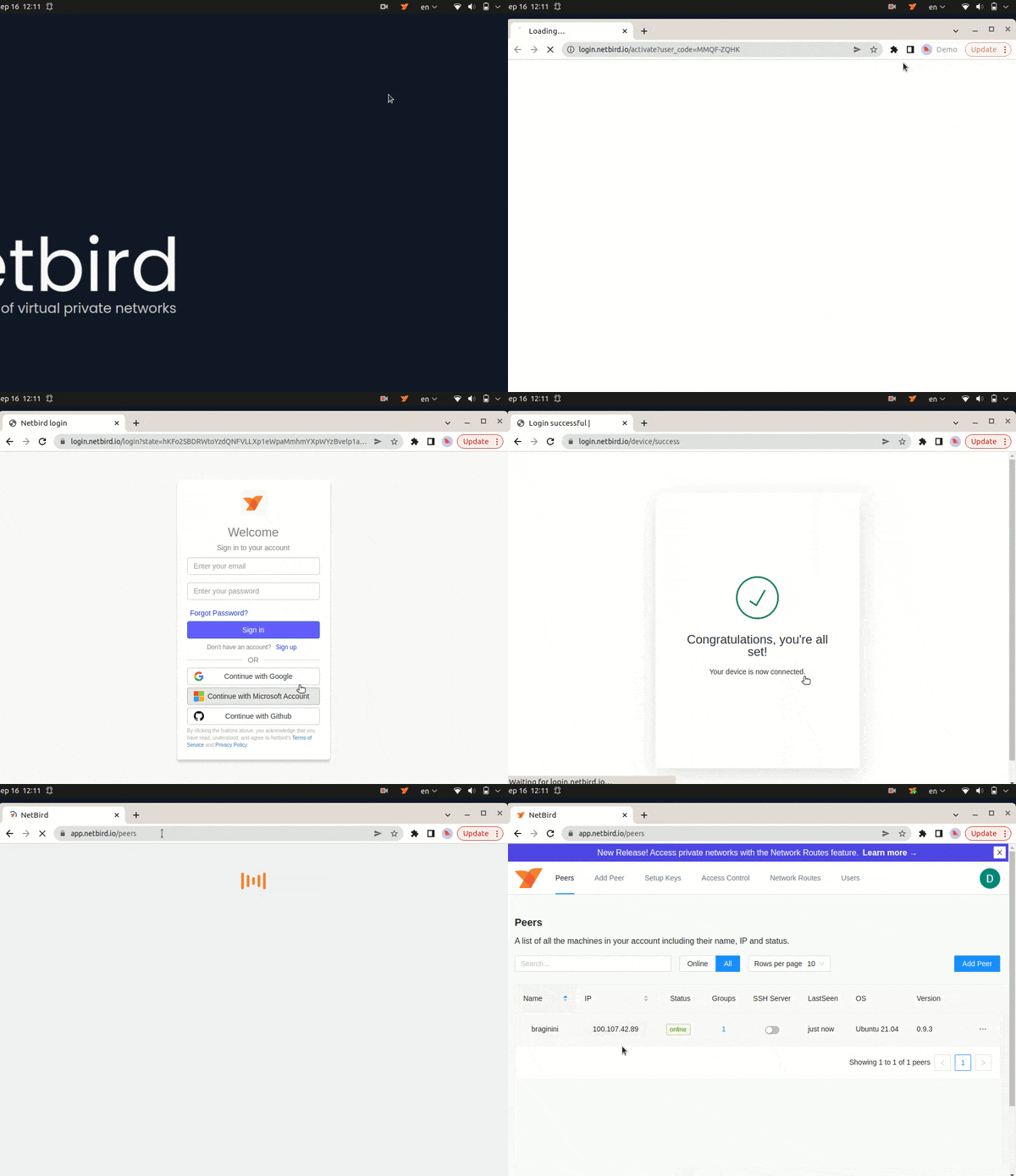
If you installed the Desktop UI client, you can launch it and click on Connect.
It will open your browser, and you will be prompt for email and password. Follow the instructions.
CLI
Alternatively, you could use command line. Simply run
qufabric up
It will open your browser, and you will be prompt for email and password. Follow the instructions.
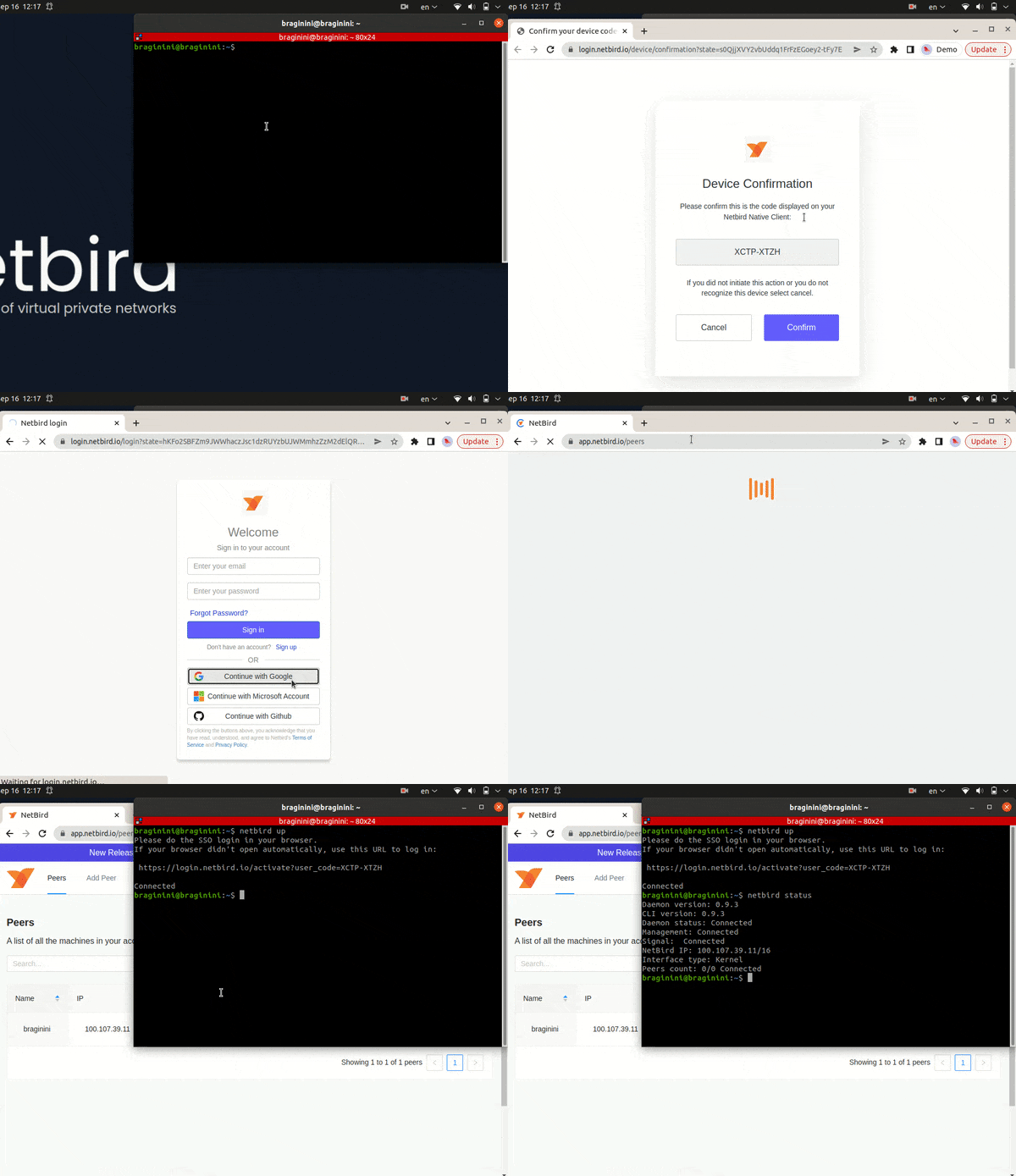
Check connection status:
qufabric status
Running QuFabric with a Setup Key
In case you are activating a server peer, you can use a setup key as described in the steps below.
This is especially helpful when you are running multiple server instances with infrastructure-as-code tools like ansible and terraform.
- Login to the Management Service. You need to have a
setup keyin hand (see setup keys).
qufabric up --setup-key <SETUP KEY>
Alternatively, if you are hosting your own Management Service provide --management-url property pointing to your Management Service:
qufabric up --setup-key <SETUP KEY> --management-url http://localhost:33073
You could also omit the
--setup-keyproperty. In this case, the tool will prompt for the key.
- Check connection status:
qufabric status
- Check your IP:
ip addr show wt0