

pfSense Installation
The QuFabric client (agent) allows a peer to join a pre-existing QuFabric deployment. If a QuFabric deployment is not yet available, there are both managed and self-hosted options available.
This installation is intended for early adopters while the pfSense package is under review and not yet available in the pfSense package manager.
Prerequisites
- Shell/SSH access to pfSense (via Web UI shell or remote SSH)
- A setup key to authenticate and register the pfSense device
- The latest QuFabric
.pkgbinary from the GitHub Releases
Installation
-
SSH into your pfSense system
ssh admin@<pfsense-ip>If remote SSH is enabled or use the built-in shell via the pfSense Web UI (
Diagnostics>Command Prompt). -
Download the QuFabric client(agent)
From a shell on your pfSense system, run:
fetch https://github.com/qufabric/pfsense-qufabric/releases/download/v0.1.2/qufabric-0.55.1.pkg -
Download the QuFabric pfSense package
From a shell on your pfSense system, run:
fetch https://github.com/qufabric/pfsense-qufabric/releases/download/v0.1.2/pfSense-pkg-QuFabric-0.1.0.pkg -
Install the packages
pkg add -f qufabric-0.55.1.pkg pkg add -f pfSense-pkg-QuFabric-0.1.0.pkg -
Verify the installation
The QuFabric GUI should now appear under
VPN>QuFabricin the pfSense menu.
Configuration
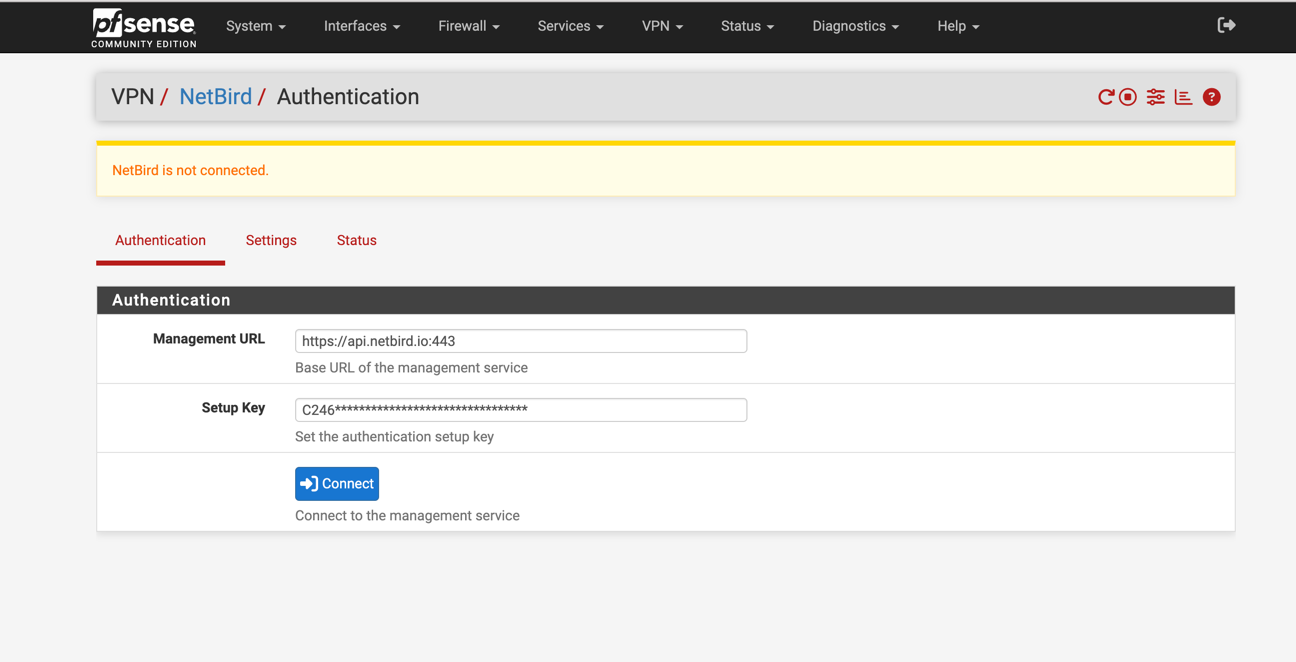
Authenticate the machine
Fill out the authentication form with the following values and click Save:
- Management URL: Default is
https://app.qufabric.io:443. If self-hosting, enter your custom management server URL. - Setup Key: Paste the setup key from your QuFabric account. .
Verify Connection Status
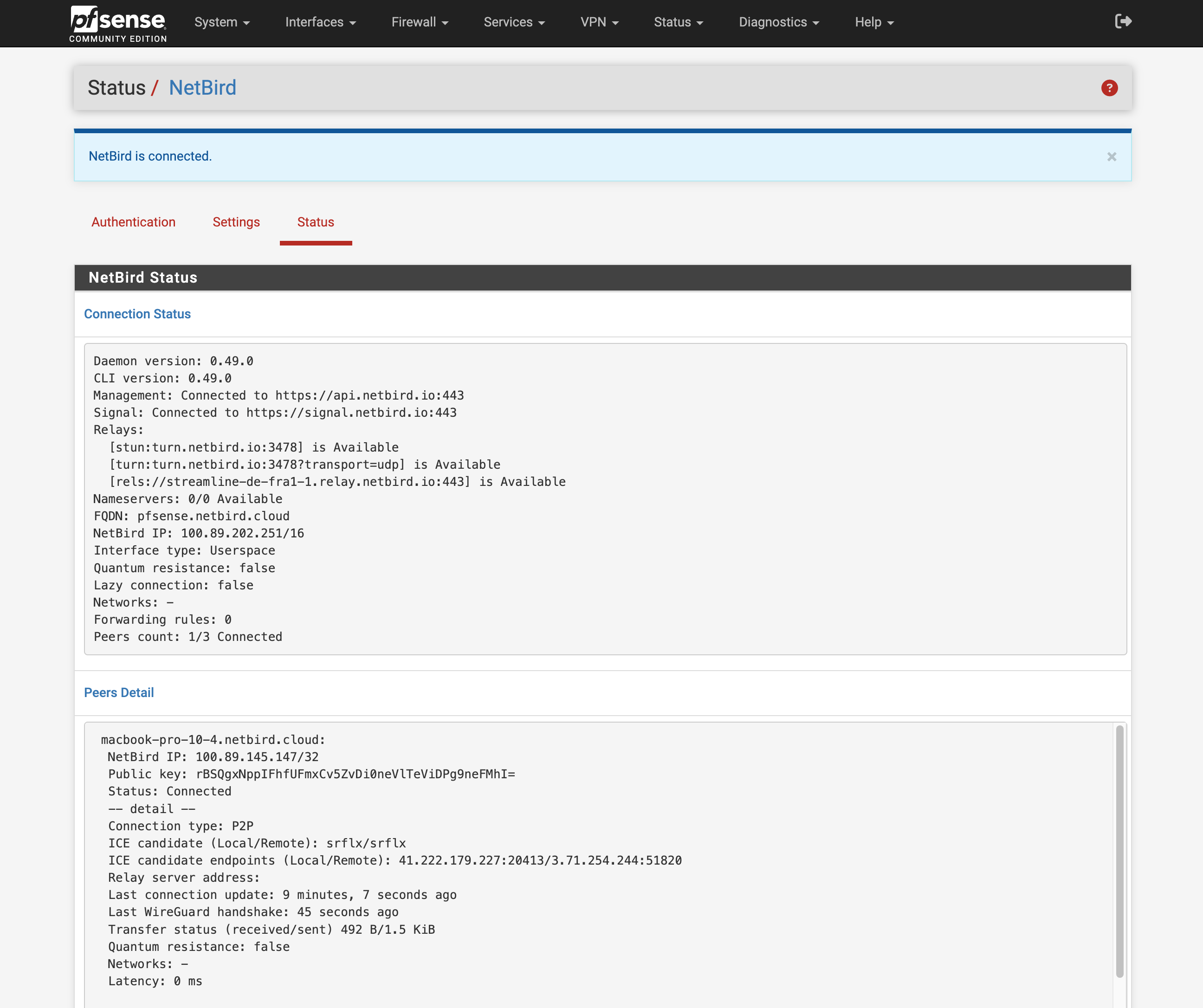
The Status page shows detailed information about connected peers and control services, helping you monitor your deployment.
Access it via Status > QuFabric in the pfSense menu.
Use this section for diagnostics and troubleshooting common connection or setup issues.
Assign QuFabric interface
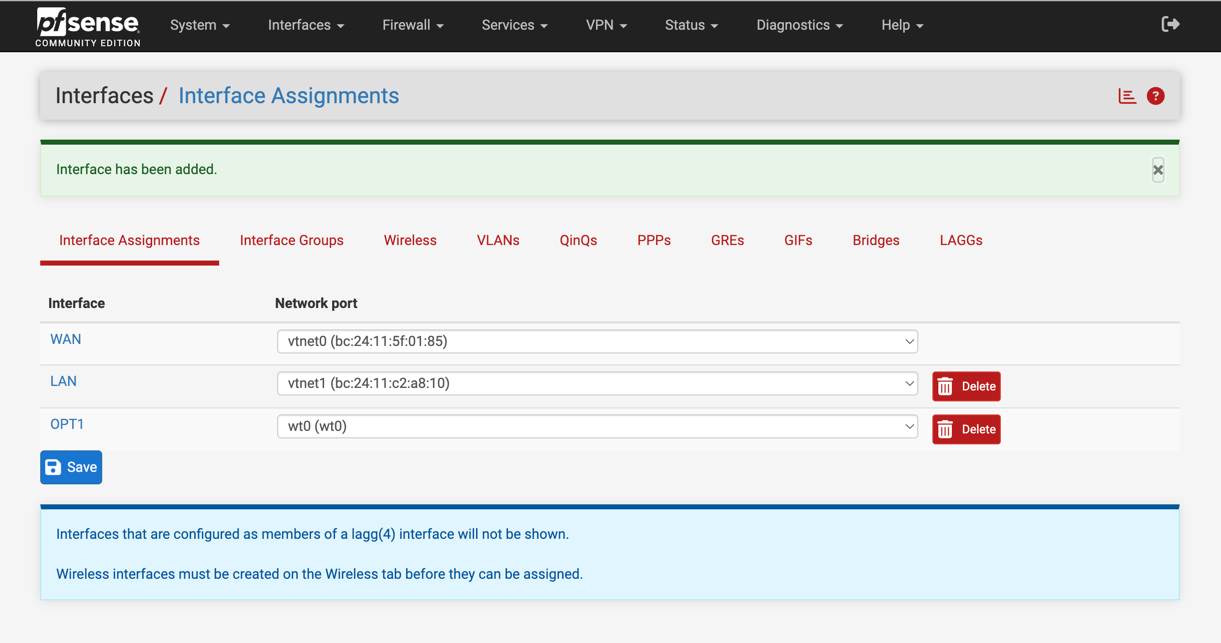
After authentication, a new interface named wt0(wt0) will be available but unassigned. To assign it go to
Interfaces > Assignments. Under Available network ports, select the QuFabric interface wt0(wt0) and click Add.
Enable the QuFabric interface
Now that the QuFabric interface has been added, you need to enable it. Go to Interfaces > OPT1, then configure
the following options and click Save, then Apply changes to activate the interface:
- Enable:
✓ Enable Interface - Description:
QuFabric

Configure Firewall Rules for the QuFabric interface
To allow QuFabric to handle all access control, permit all traffic on the QuFabric interface in pfSense. This ensures traffic flows freely, while QuFabric’s own policies (ACLs) govern the access restrictions.
Create rules to control traffic coming from your QuFabric network into pfSense and your local networks:
- Go to
Firewall>Rulesand select theQuFabric(interface) tab and clickAddto create rules - Configure the rule:
- Action:
Pass - Interface:
NETBIRD - Address Family:
in - Protocol:
Any - Source:
Any - Destination:
Any - Description:
Allow all on QuFabric (managed by QuFabric)
- Action:
- Click
Save, thenApply Changes

Config for Troubleshooting Relayed Connections
By default, pfSense uses automatic outbound NAT which randomizes source ports. This can cause issues with QuFabric's NAT traversal (hole punching). To ensure reliable direct connections, you must configure a Static Port mapping.
-
Change Outbound NAT Mode:
- Navigate to
Firewall>NAT>Outbound. - Select
Hybrid Outbound NAT rule generation. - Click
Save.
- Navigate to
-
Add Static Port Rule:
- Click
Add(Up arrow) to create a new rule at the top of the list. - Interface:
WAN - Address Family:
IPv4 - Protocol:
UDP - Source:
Network(enter the IP address of your QuFabric host) - Destination:
Any - Translation / Static Port: Check
Static Portbox - Description:
QuFabric Static Port - Click
Saveand thenApply Changes.
- Click
-
Reset States:
- Go to
Diagnostics>States. - Filter by the QuFabric host IP.
- Click
Kill.
- Go to
-
Restart QuFabric:
- Run
qufabric service restarton the device. - Run
qufabric status -dto verify the connection.
- Run
Uninstallation
From a shell on your pfSense system, run:
pkg delete qufabric-0.55.1 pfSense-pkg-QuFabric-0.1.0
Get started
- Make sure to star us on GitHub
- Follow us on X
- Join our Slack Channel
- QuFabric latest release on GitHub